Install AxleSynck and connect to Tally
AxleSynck runs on Windows 10 / 11 beside Tally. It reads and posts data through Tally's own connection, so nothing is installed inside Tally.
- Install
On axlesynck.in click Download, then Download from the Microsoft Store, and click Get in the Microsoft Store. It installs by itself.
- Open your company in Tally
AxleSynck talks to Tally on port 9000. In Tally check F1 > Settings > Connectivity: Tally should act as Server (or Both) on port 9000.
- Start AxleSynck
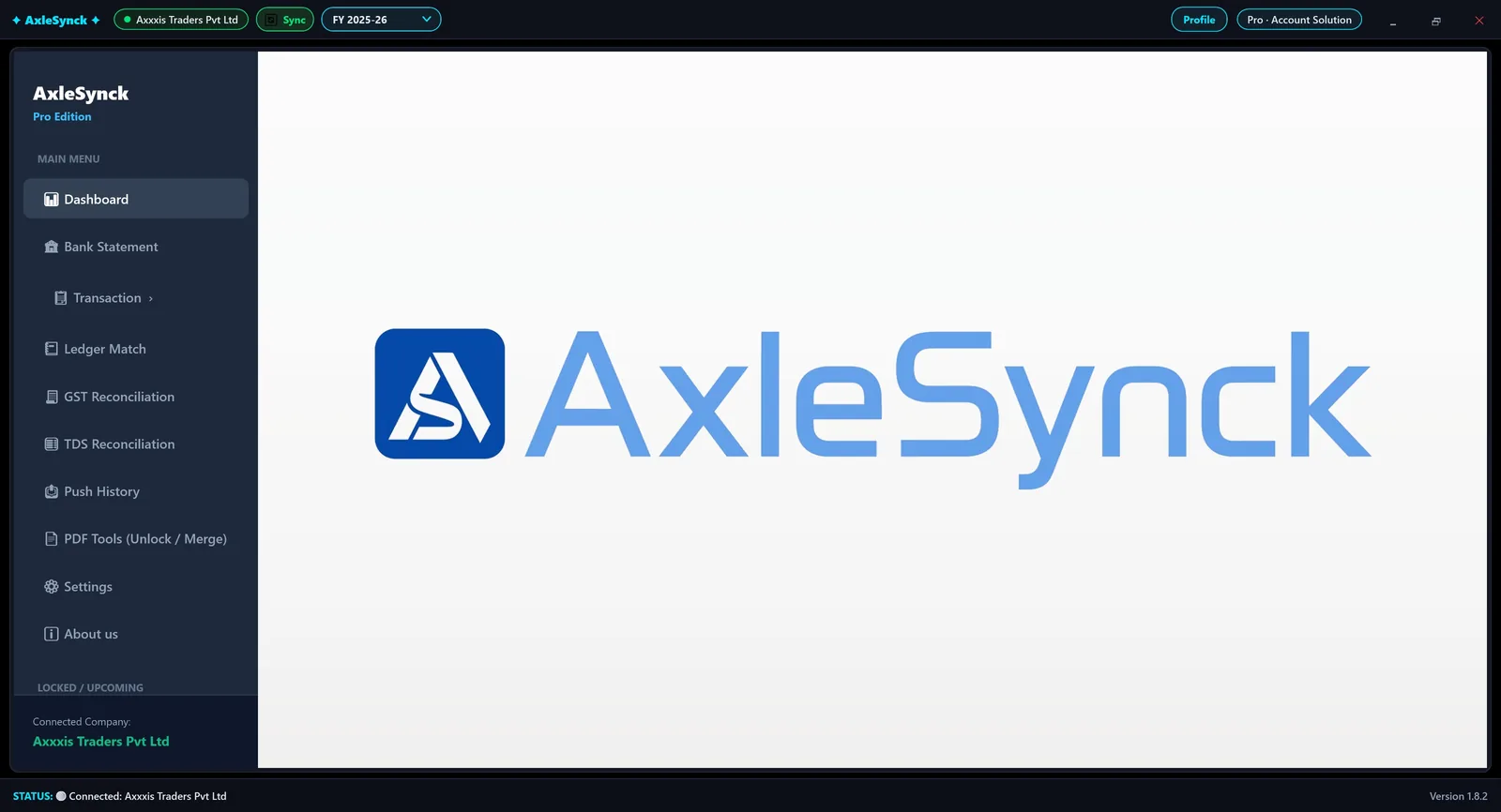
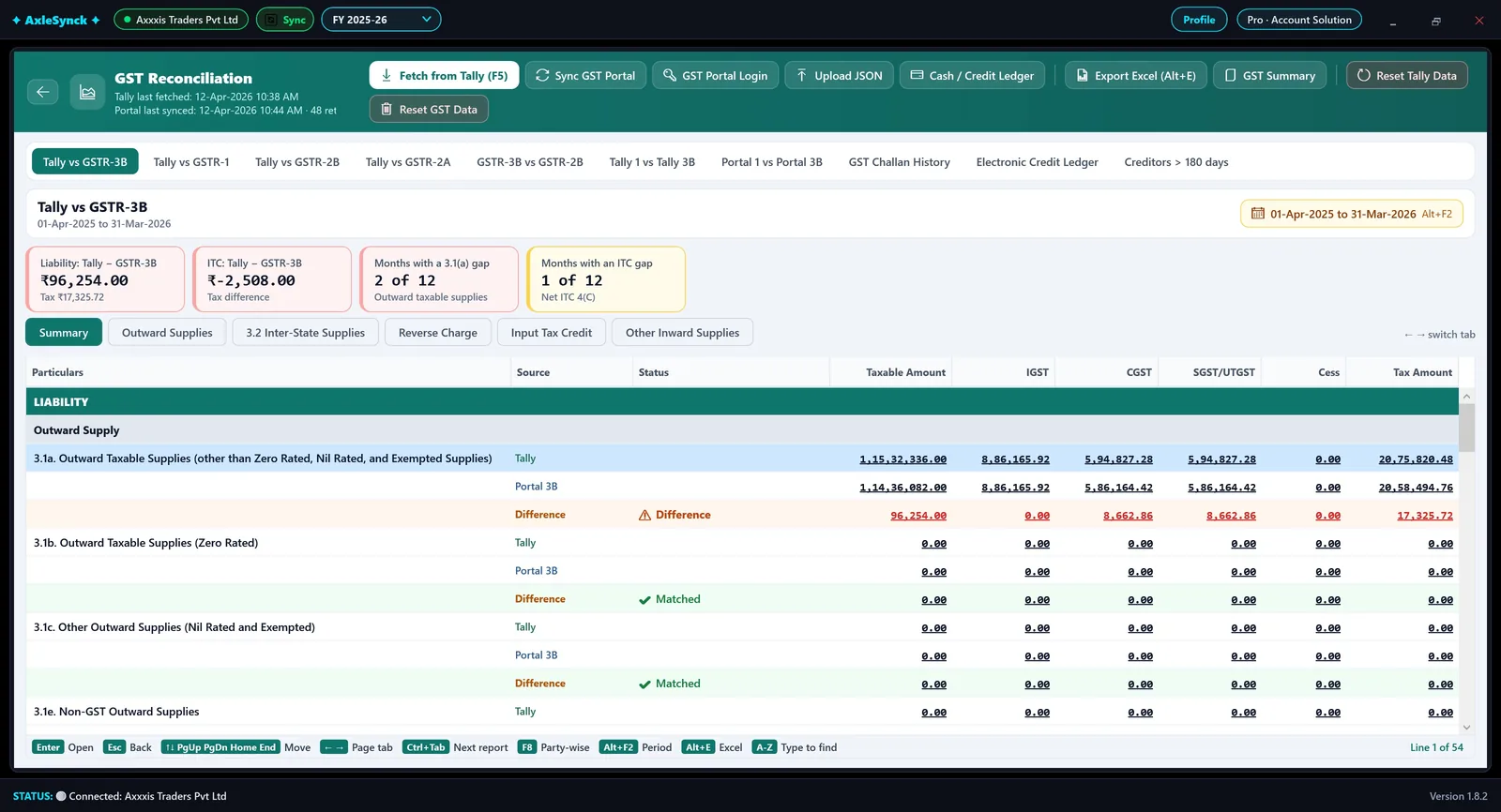
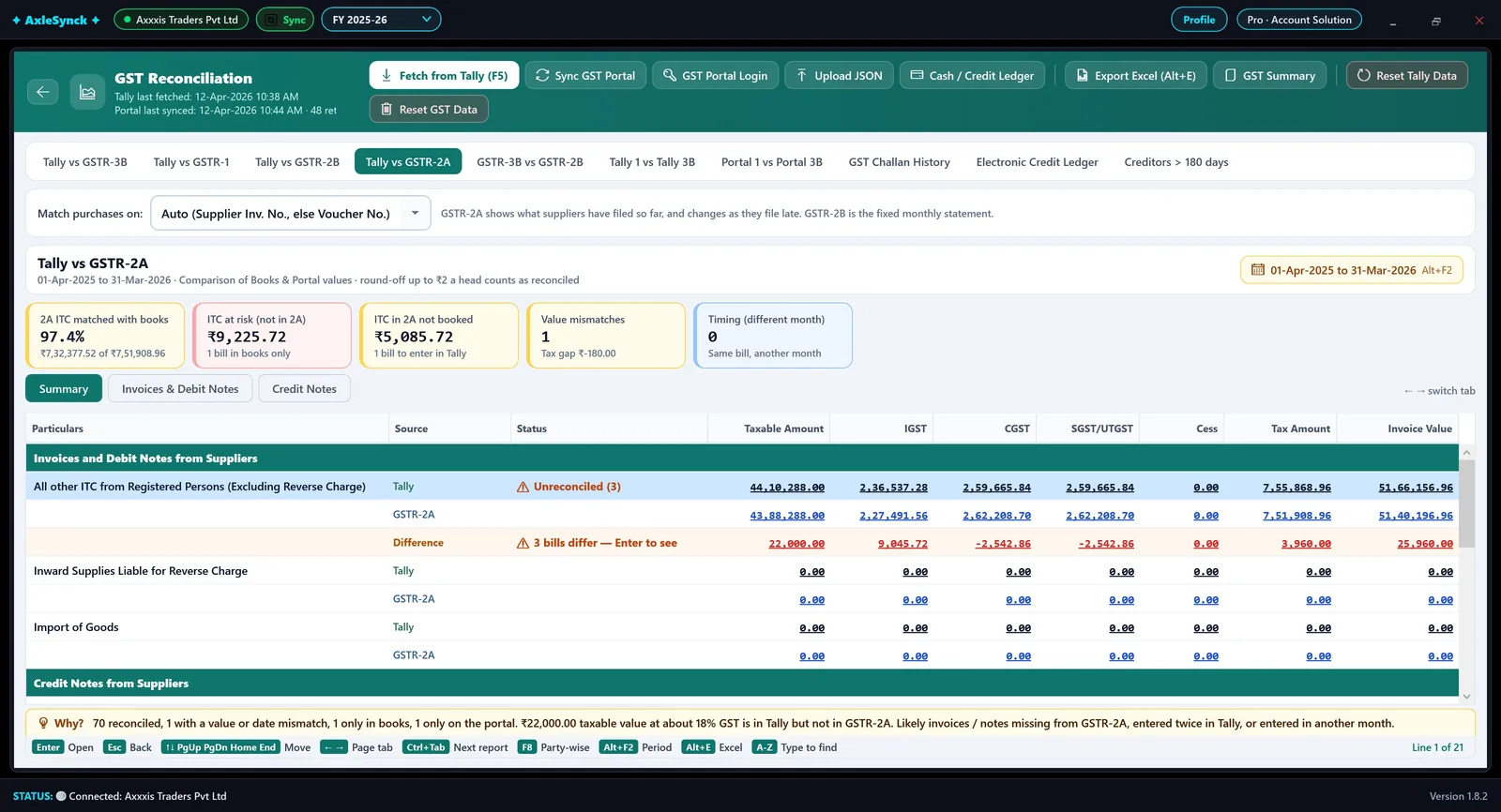
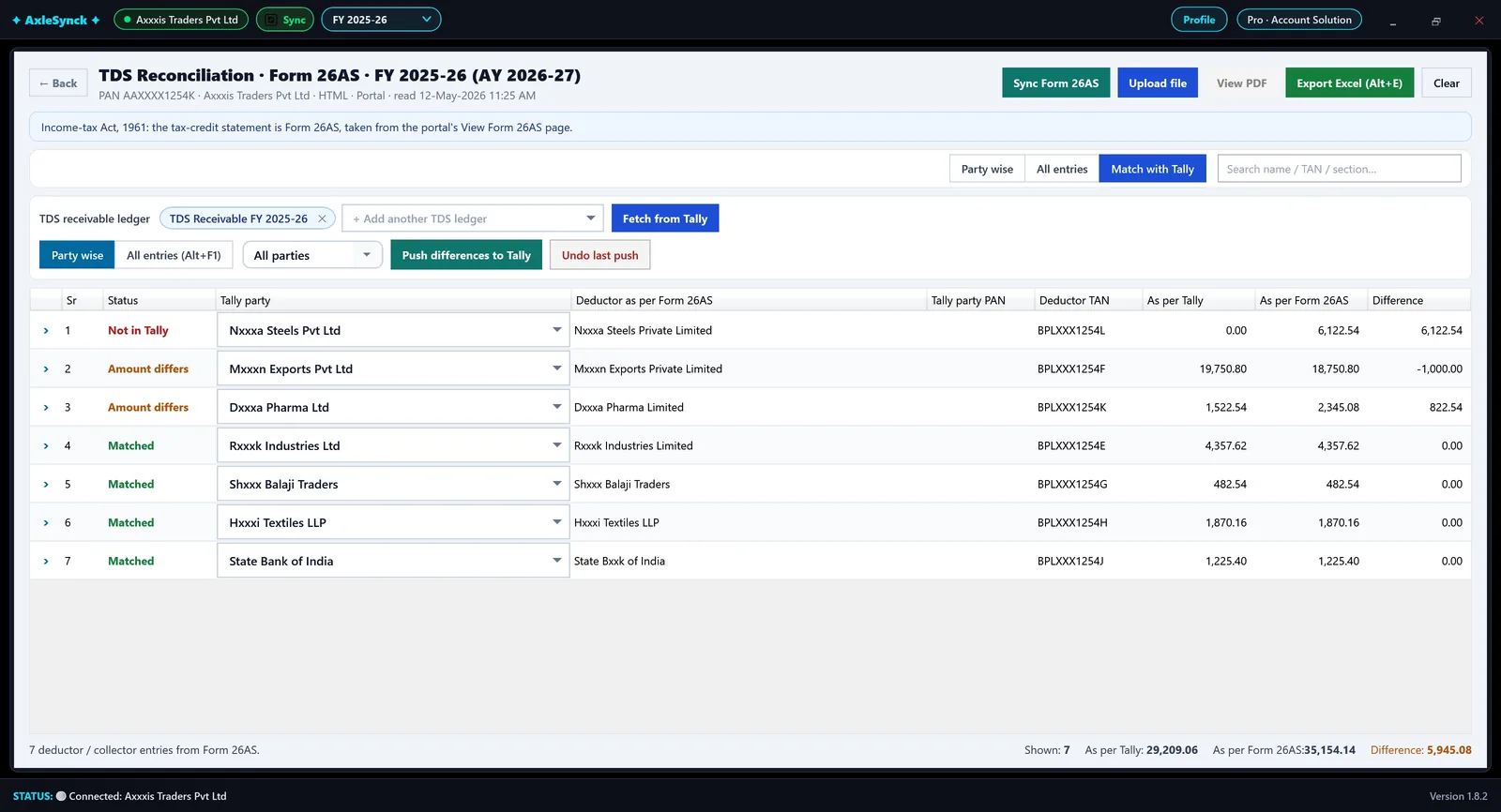
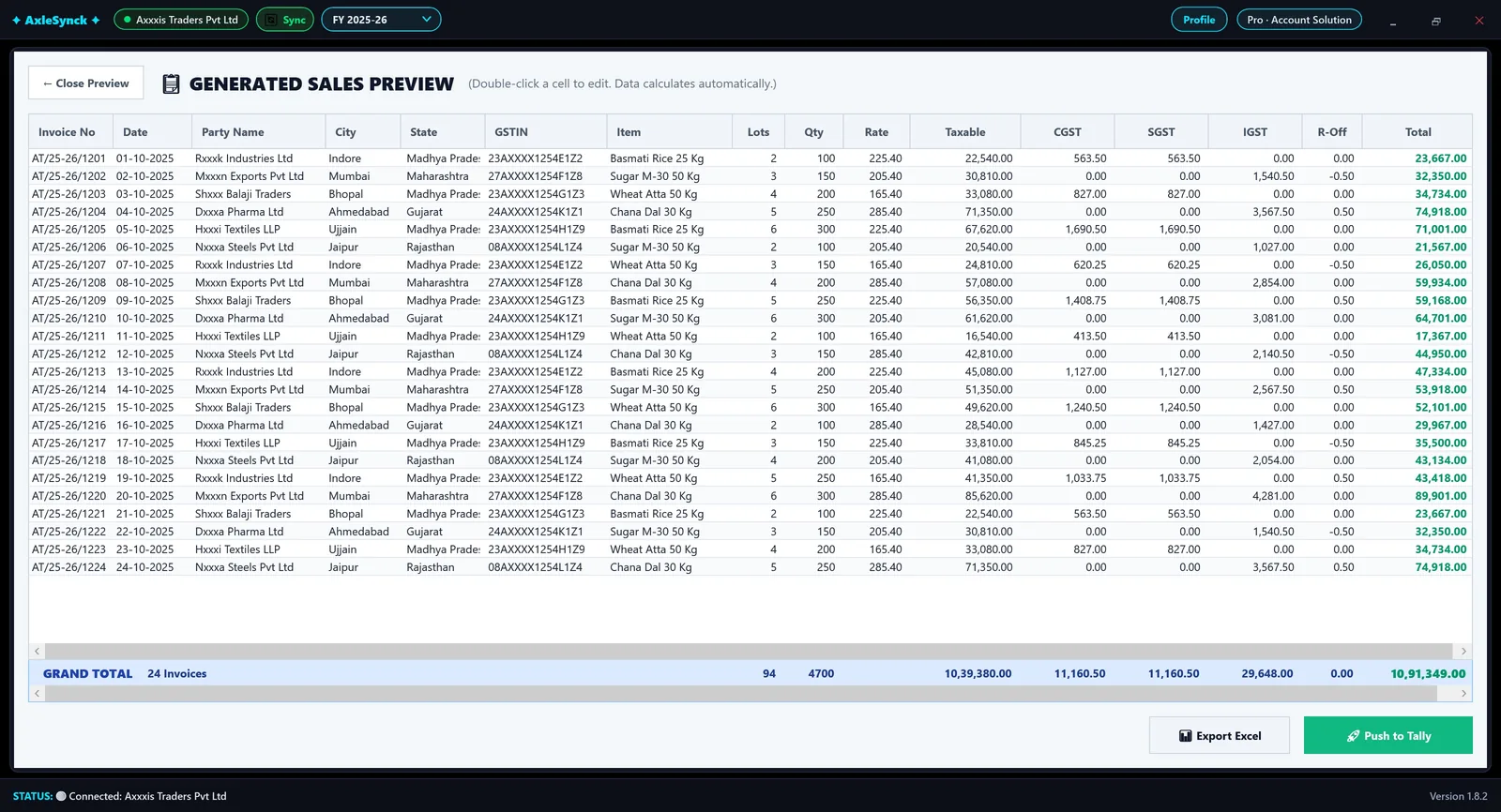
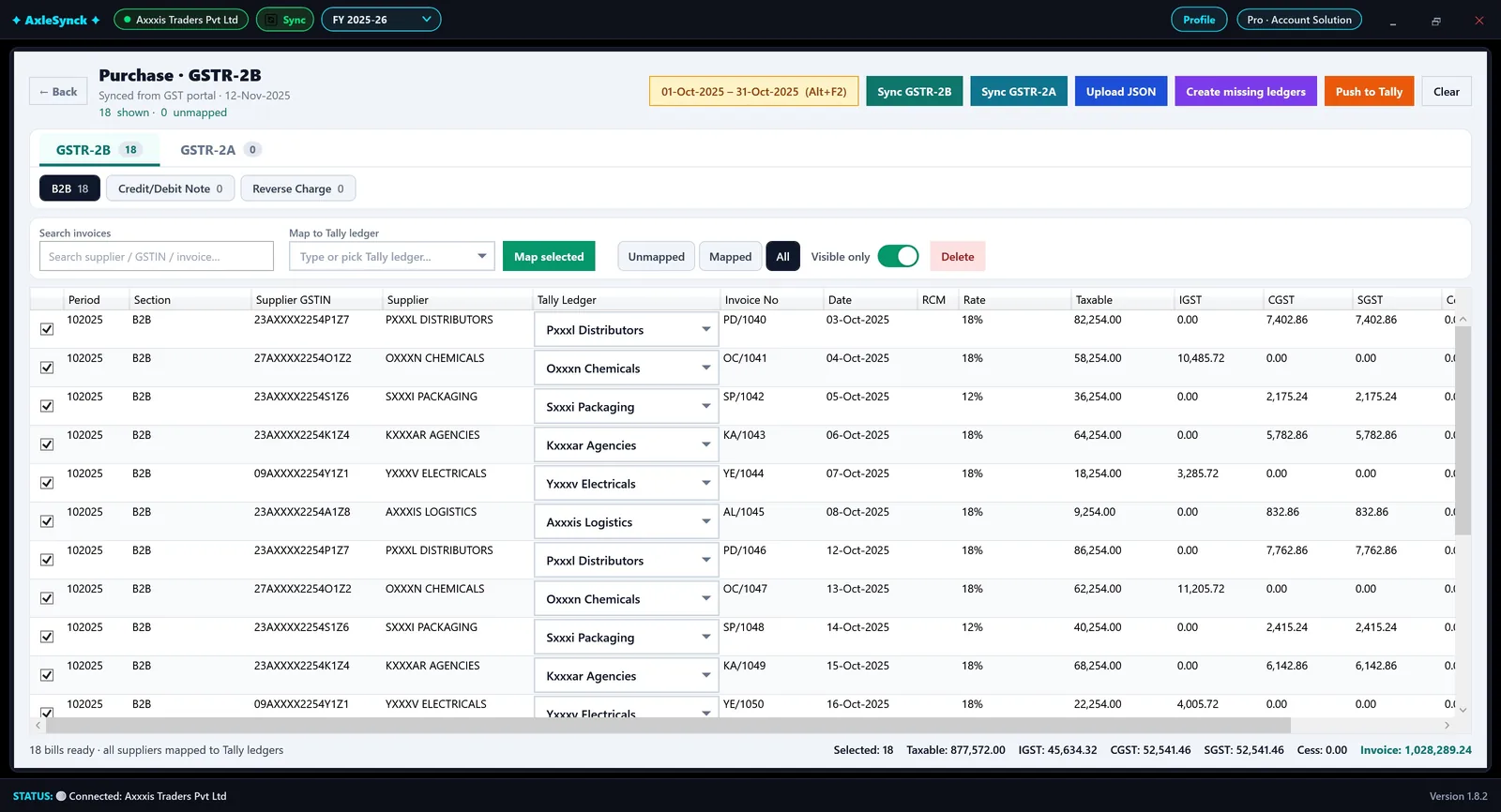
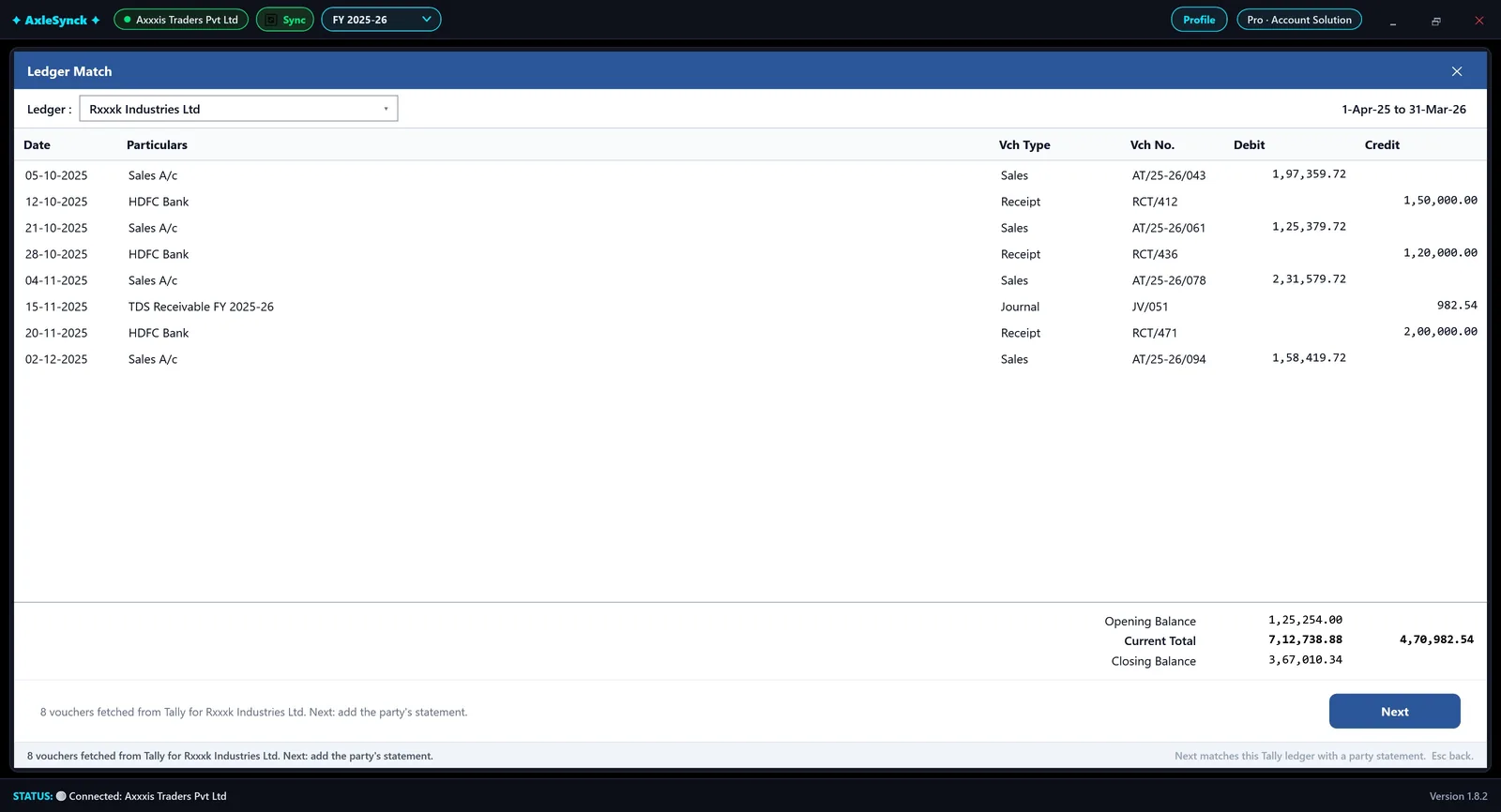
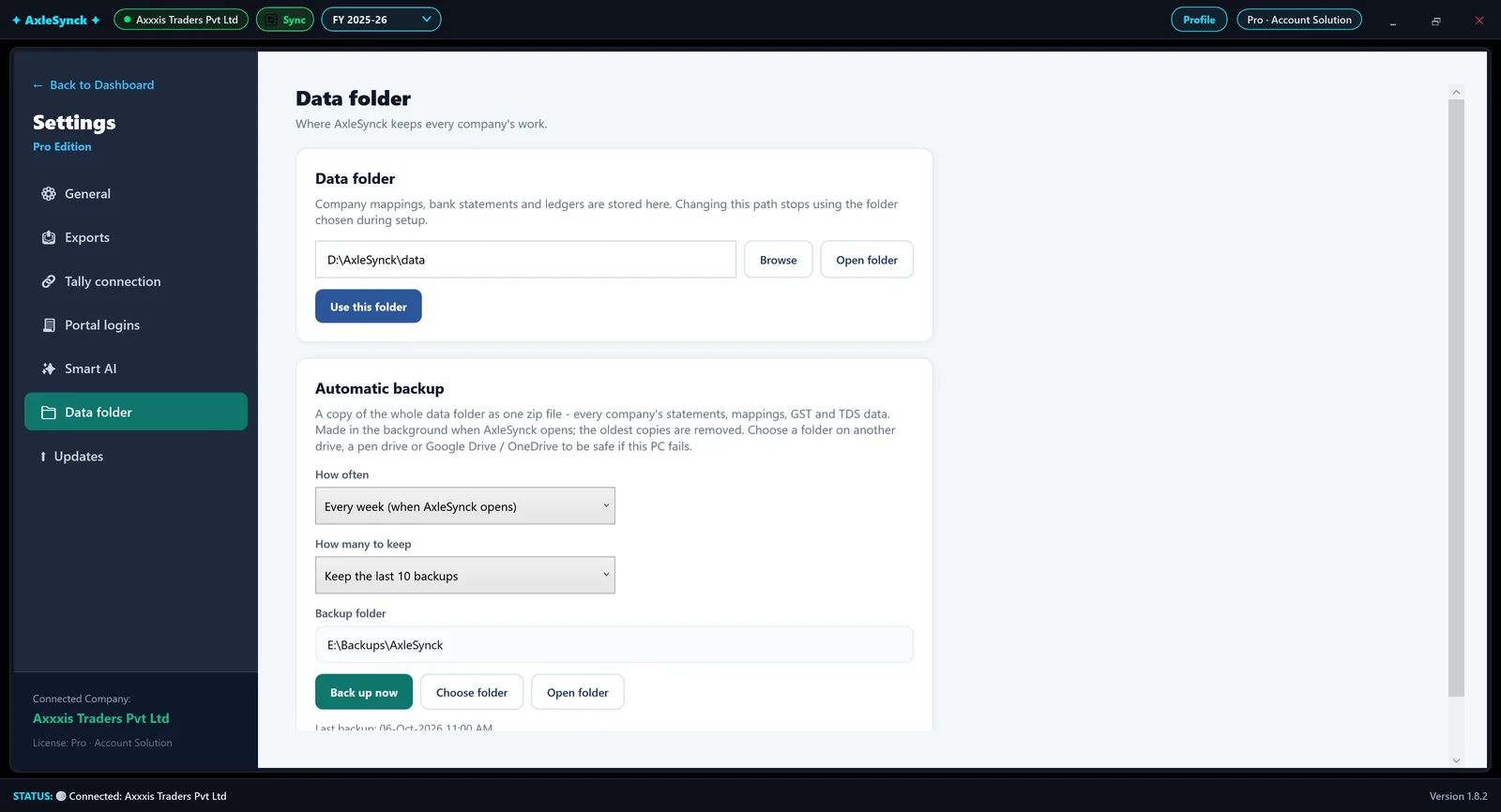
The open Tally company shows at the top with a green dot, and the status bar says Connected. Pick the financial year in the FY box at the top.
- Tally on another computer, or on cloud?
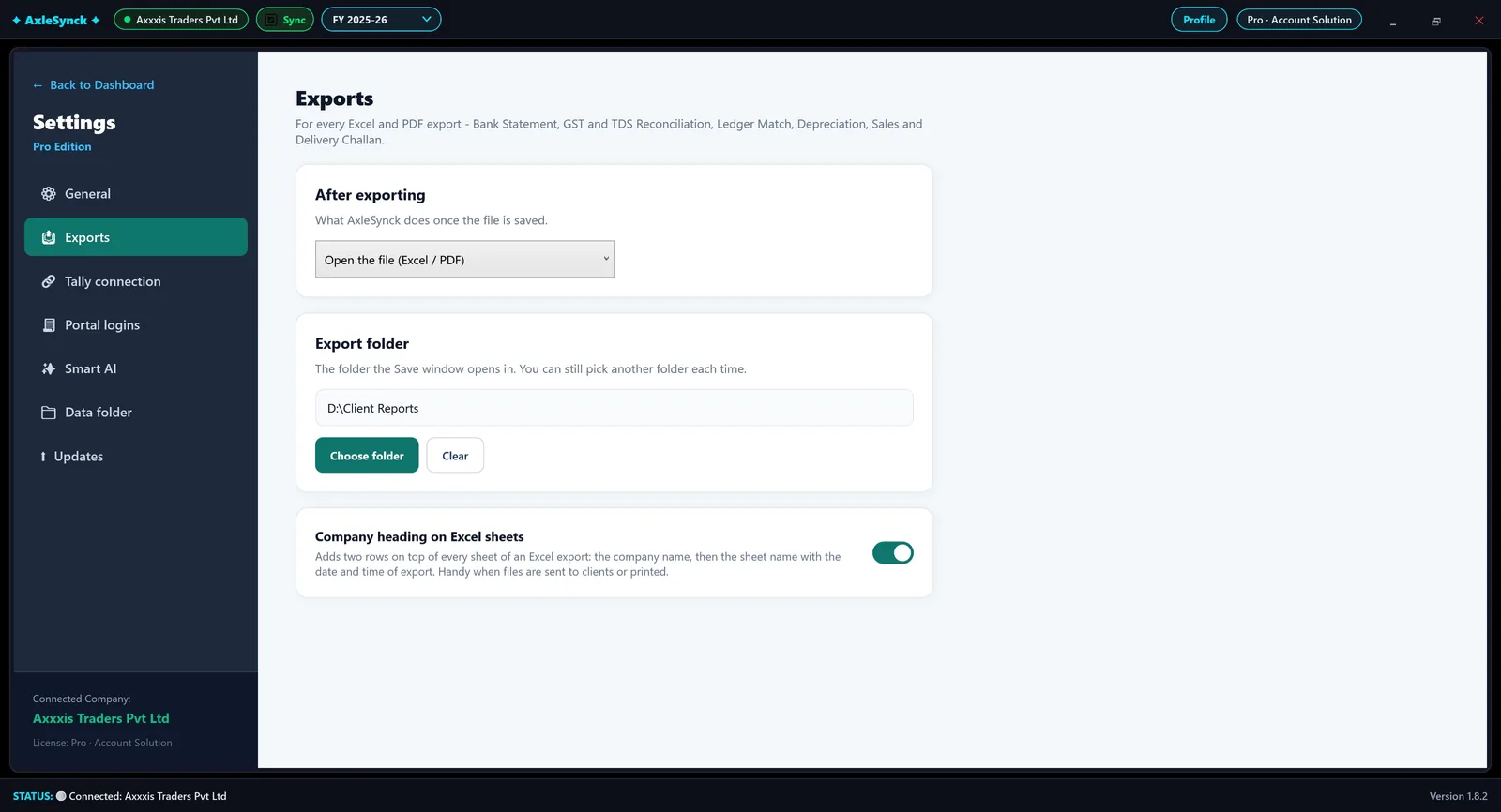
Open Settings > Tally connection and choose where Tally runs. On another computer of my office network: type that computer's IP address (or name) and the port, click Test connection, then Save & reconnect. On a cloud computer: see Tally on cloud. Use this computer (default) puts it back to this PC, port 9000.
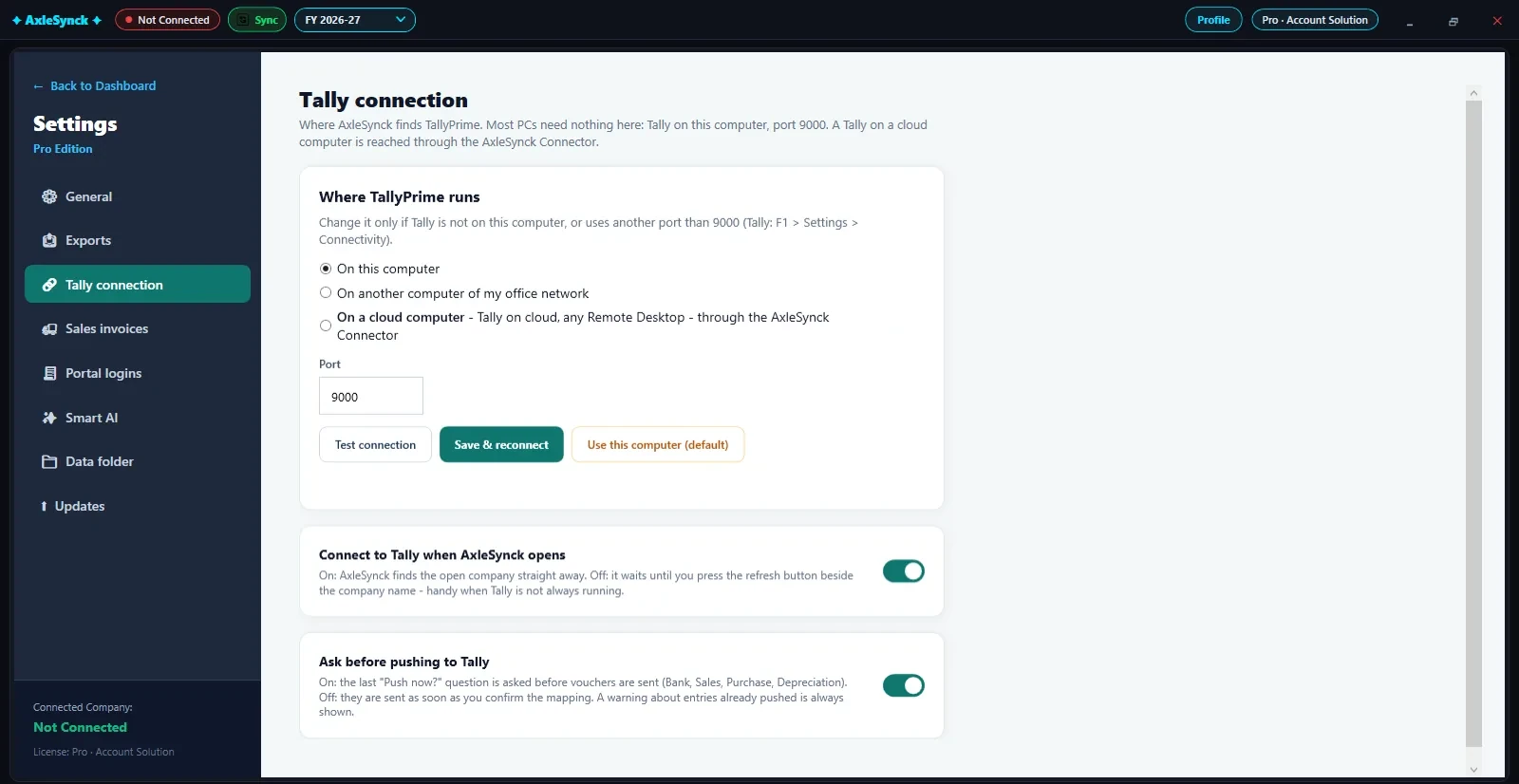
- 1Where Tally runs: on this computer, on another computer of your office network, or on a cloud computer
- 2Port: 9000 unless Tally uses another one
- 3Test connection: checks that Tally answers
- 4Save & reconnect
- 5Connect to Tally when AxleSynck opens
- 6Ask before pushing to Tally: one last confirmation before vouchers are sent
Keep Tally open with the company loaded whenever you fetch from or push to Tally.